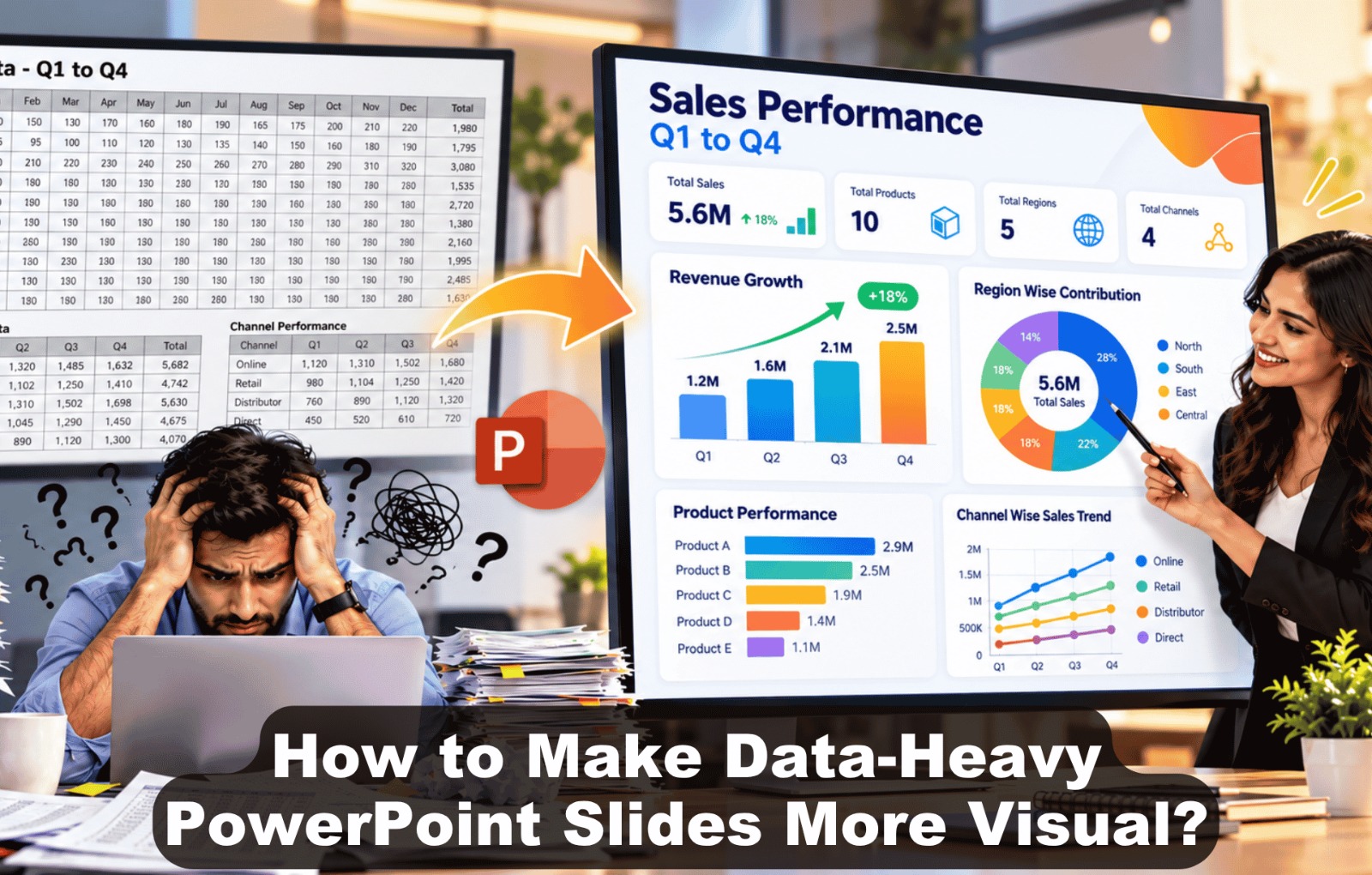
How to Make Data-Heavy PowerPoint Slides More Visual?
Most of us have sat through a presentation where one slide contains almost everything: charts, tables, percentages, statistics, text, and several different colours.
The information may be accurate, but the slide can still feel overwhelming.
At MyBusiness Visual, we see this quite often when we work with business reports, financial presentations, sales decks, research presentations, management reviews, and consulting presentations. Our clients usually have plenty of valuable information. The challenge is deciding what the audience really needs to see and how we can present it clearly.
That is where thoughtful presentation design makes a difference.
We do not believe that making a data-heavy slide more visual means simply adding icons, colours, or decorative graphics. For us, it means understanding the story behind the numbers and building a slide that helps the audience understand that story quickly.
So, how can we make Data-Heavy PowerPoint Slides More Visual?
We start with the message rather than the chart.
What Is Changing in Data Visualization in 2026?
The way people consume presentations is changing, and we see this especially in business meetings where audiences are expected to absorb information quickly.
We are seeing more presentations move away from crowded dashboards and generic charts towards clearer data storytelling, focused insights, stronger visual hierarchy, accessibility, AI-assisted workflows, and audience-specific presentation design.
AI is also changing how quickly teams can create presentation drafts, summarise information, generate layouts, and work with brand assets. But from our experience, speed alone does not make a presentation effective.
A tool can create a chart in seconds. It still takes human judgement to decide whether that chart actually tells the right story.
At MyBusiness Visual, we combine technology with our presentation design experience so that the final slide is not only visually appealing but also meaningful.
Here are the approaches we recommend when working with data-heavy presentations.
1. Follow the One-Slide, One-Key-Insight Approach
One of the first things we look for when reviewing a crowded presentation is whether the slide is trying to communicate too many ideas.
Our simple question is:
“What is the one thing we want the audience to remember from this slide?”
If the answer is clear, the design becomes much easier.
For example, suppose our client's data shows that enterprise customers contributed most of the company's quarterly growth.
Instead of using a generic heading such as:
“Quarterly Sales Performance”
we could create a more useful headline:
“Enterprise Sales Drove 32% Revenue Growth in Q3”
Now we have a clear direction for the slide.
The chart supports the headline rather than forcing the audience to study the chart and work out the conclusion themselves.
This is one of the simplest ways we can make Data-Heavy PowerPoint Slides More Visual without removing important information.
2. Write Insight-Driven Slide Titles
We often see presentation titles such as:
Sales Performance
Marketing Analysis
Revenue Overview
Quarterly Results
These titles tell us what the slide contains, but they do not tell us what the audience should understand.
We prefer titles that communicate the insight.
For example:
“Enterprise Revenue Increased 32% in Q3”
is much more useful than:
“Quarterly Revenue”
When we create PowerPoint storytelling for our clients, we treat the title as part of the story.
A good title can answer:
- What happened?
- What changed?
- Where did it happen?
- Why does it matter?
- What should the audience notice?
This small change often makes a big difference to how quickly people understand a slide.
3. Use AI as a Design Assistant, Not the Final Decision-Maker
AI has become an important part of presentation workflows, and we use it where it genuinely helps us work more efficiently.
AI can help us:
- Organise large amounts of content
- Summarise lengthy reports
- Create first-draft presentation structures
- Suggest visual approaches
- Speed up repetitive formatting
- Generate initial content
- Work with presentation themes and layouts
But we do not treat AI output as the finished presentation.
For example, AI may identify that revenue increased by 32%.
But what if the company's target was 40%?
That context completely changes the story.
Our designers need to understand the business situation, audience, and purpose behind the data before deciding what deserves emphasis.
We see AI as a useful assistant that helps us move faster. The final decisions still need human thinking, design judgement, and business understanding.
4. Move From “Data Display” to “Data Storytelling”
When we receive a spreadsheet or report from a client, our first instinct is not to immediately turn every number into a chart.
We first ask:
What is the story here?
For example:
What happened?
Website conversions increased by 18%.
Why did it happen?
The redesigned landing page generated more qualified leads.
Why does it matter?
The improvement reduced the cost per qualified lead.
What should happen next?
The same landing-page approach could be tested across other campaigns.
Now the information has a clear flow.
This is what we mean by data storytelling in PowerPoint. We are not simply showing numbers. We are helping the audience understand what those numbers mean.
5. Highlight the “So What?” on Every Data Slide
When we review a presentation, one question we often ask is:
“So what?”
A number can be interesting, but our audience needs to know why it matters.
For example:
Customer retention increased from 82% to 89%.
That is useful information.
But if we know that the increase happened after a new customer onboarding process was introduced, the story becomes more meaningful.
We could present the insight as:
“Customer retention improved by 7 percentage points following the new onboarding process.”
Now the audience has context.
We recommend doing this wherever possible. Instead of making our audience interpret the numbers themselves, we should help them understand the business implication.
6. Use Direct Data Labels Instead of Making People Search
We often find that small improvements to chart labelling can make a presentation much easier to follow.
If a chart has a separate legend, the audience may need to move their eyes between the legend and the chart.
Where possible, we prefer direct labels.
For example:
Enterprise — $4.2M
SMB — $2.8M
Mid-Market — $1.9M
This reduces the amount of effort required to understand the visual.
It becomes especially useful when our clients present through online meetings, conference-room screens, or shared laptop displays where small legends can be difficult to read.
Our goal with Data Visualization in PowerPoint is always to make the information easier to understand, not harder.
7. Make Charts Executive-Friendly
When we design presentations for senior management, we usually ask ourselves:
“Does this audience really need every number?”
In most cases, the answer is no.
Executives often need to understand the situation quickly so they can discuss a decision, risk, opportunity, or next step.
Instead of showing 15 KPIs, four charts, and several tables, we could create a focused summary:
Key Business Performance
Revenue
$12.4M | +18%
Gross Margin
42% | +3 pts
Customer Growth
+24%
Then we can use one focused chart to explain the most important movement.
Our approach to executive presentation design is not about hiding information. It is about putting the right information first.
8. Try the “Five-Second Test”
One of our favourite practical checks is the five-second test.
We show the slide to someone who has not been involved in creating it and ask:
“What do you think this slide is telling you?”
If they immediately identify the main point, we know the visual hierarchy is probably working.
If they start reading every number or ask, “Where should I look?”, we know we need to simplify the slide.
We do not expect someone to understand every detail in five seconds.
What we want is for the main message to be visible quickly.
This is particularly useful when we are creating Visual Slides for presentations that need to work in fast-paced business meetings.
9. Use Colour to Direct Attention
Colour is useful when we give it a purpose.
One of the mistakes we often see is using a different bright colour for every category simply because the chart contains multiple categories.
That can make the visual look busy.
Instead, we recommend creating a simple colour hierarchy.
For example:
Supporting data: neutral colours
Important result: brand accent
Negative movement: appropriate warning colour
Positive movement: appropriate positive indicator
When we design a presentation for a client, we also make sure the colour system remains consistent throughout the deck.
If blue represents revenue on slide three, our audience should not suddenly have to interpret blue as customer acquisition on slide ten.
10. Accessibility Is Part of Good Presentation Design
We believe accessibility should be considered during presentation design rather than added as an afterthought.
When we create a data-heavy slide, we ask ourselves:
- Can our audience read the text comfortably?
- Is the contrast strong enough?
- Can the chart be understood without relying only on colour?
- Are the labels clear?
- Is the slide title meaningful?
- Is the information arranged logically?
- Will the slide still work when presented on a large screen?
These questions are useful even when accessibility is not a specific requirement.
A presentation that is easier to read is generally a better presentation for everyone.
11. Use Annotation Instead of Adding More Charts
Sometimes we see a chart that does not need another chart.
It simply needs a little context.
Imagine a line chart showing a sudden increase in revenue during Q3.
Instead of leaving the audience to figure out why, we can add a short annotation:
“Q3 growth accelerated following the enterprise campaign launch.”
That single sentence gives the audience a reason to pay attention to the change.
We use annotations to highlight:
- Sudden increases
- Unexpected declines
- Important milestones
- Performance gaps
- Target achievements
- Business events
- Significant changes
This is a simple but effective way to improve data visualization in PowerPoint.
12. Don't Confuse a Dashboard With a Presentation
We often work with clients who have excellent dashboards but struggle to turn those dashboards into effective presentations.
The reason is simple: dashboards and presentations serve different purposes.
A dashboard may need to show 20 or 30 metrics because the user wants a complete view of performance.
A presentation usually needs to tell a specific story.
If we copy the entire dashboard onto a PowerPoint slide, the result is often crowded and difficult to follow.
Instead, we look at the dashboard and ask:
“Which insights matter for this meeting?”
Those are the insights we bring into the presentation.
The remaining information can stay in the dashboard or move into the appendix.
13. Use More White Space
We often hear:
“There is too much empty space on this slide. Can we add something?”
Our answer is usually: not necessarily.
White space is useful.
It separates information and gives important elements room to stand out.
When every part of a slide is filled with text, numbers, charts, icons, and shapes, the audience has nowhere obvious to begin.
We would rather have a slide with a little breathing room and a clear message than a slide that uses every available pixel.
This is particularly important when creating professional PowerPoint presentation slides for senior audiences.
14. Create Different Versions for Different Audiences
We do not believe one version of a presentation works equally well for everyone.
The same business data can be presented differently depending on the audience.
For executives, we may focus on:
- Key findings
- Business impact
- Risks
- Opportunities
- Decisions required
For managers, we may include:
- Operational details
- Team performance
- Comparisons
- Causes of changes
For analysts, we may need:
- Detailed methodology
- Supporting figures
- Assumptions
- Data sources
- Calculations
The underlying information can remain the same.
Our presentation approach should change according to the audience.
That is why audience-focused presentation design is so important to us.
15. Build a Consistent Data Visualization System
For clients who create monthly reports, quarterly reviews, sales presentations, or management decks, consistency can save a huge amount of time.
We can establish rules for:
- Chart colours
- Fonts
- KPI cards
- Number formatting
- Headings
- Labels
- Tables
- Icons
- Callouts
- Spacing
Once our design system is established, the team does not need to reinvent the visual style every month.
It also makes the presentation feel like part of one brand rather than a collection of independently designed slides.
16. Keep the Detailed Data in the Appendix
Simplifying a presentation does not mean removing useful information permanently.
If our client's stakeholders may want to see detailed figures, we can keep that information in the appendix.
The main presentation can focus on:
Insight → Evidence → Recommendation
The appendix can include:
- Detailed tables
- Supporting calculations
- Methodology
- Additional charts
- Data sources
- Definitions
- Assumptions
This approach lets us keep the main presentation clean while still giving the audience access to the detail when they need it.
2026 Data Visualization Checklist
Before we finalise a data-heavy PowerPoint, we recommend checking the following:
| Check | Question |
|---|---|
| Message | Is there one clear takeaway? |
| Title | Does the title communicate an insight? |
| Chart | Is the chart appropriate for the data? |
| Labels | Can our audience understand the chart without guessing? |
| Colour | Does colour direct attention? |
| Hierarchy | Is the most important information obvious? |
| Context | Does the data have a useful comparison or baseline? |
| Accessibility | Can people read and understand the slide comfortably? |
| AI | Has AI-assisted content been reviewed by a person? |
| Story | Does the slide connect naturally to the next point? |
| Action | Does the audience understand what the data means? |
| Appendix | Can detailed information move out of the main slide? |
What Are the Most Common Data Presentation Mistakes?
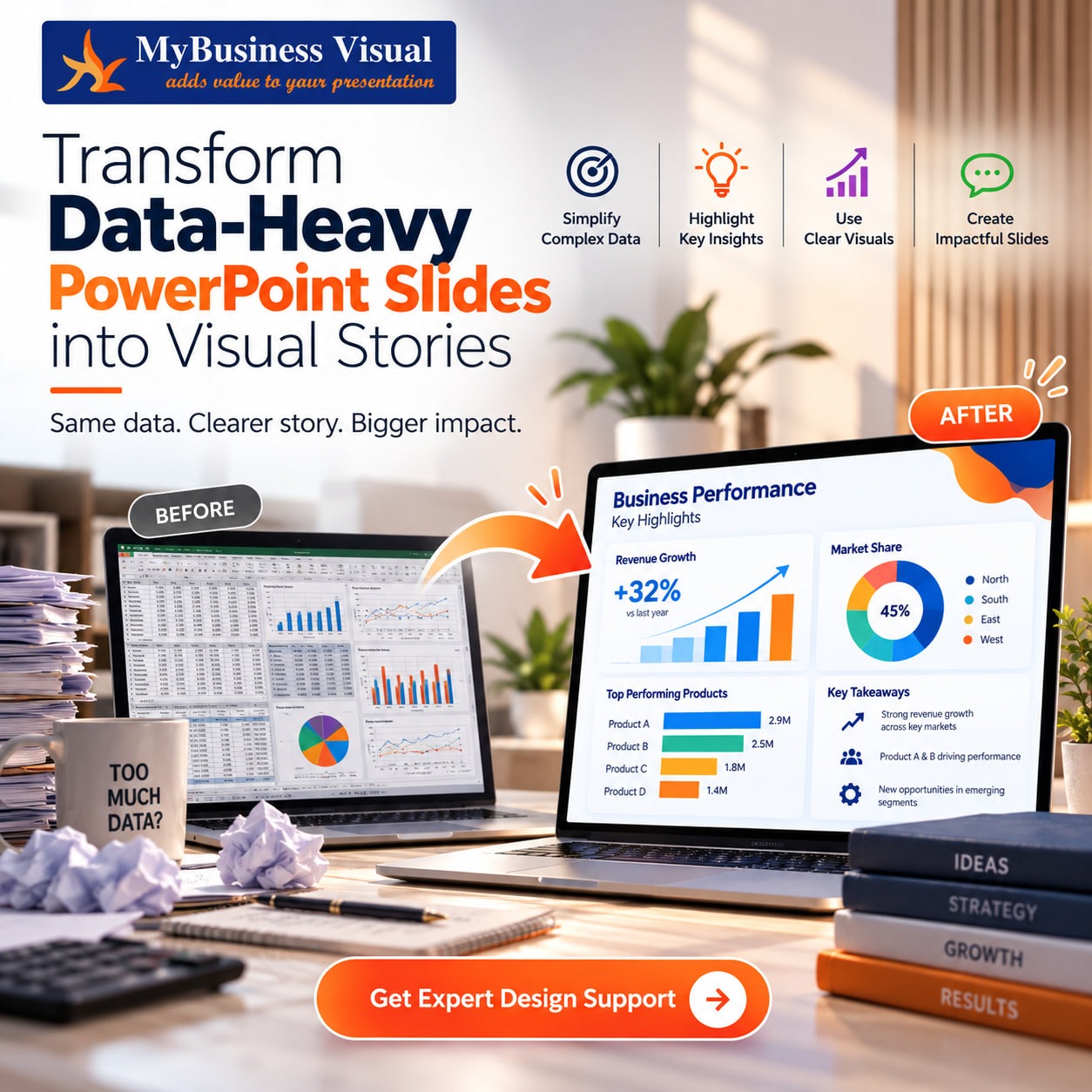
Showing everything
We understand why this happens.
When our clients have spent days collecting and analysing data, leaving something out can feel uncomfortable.
But the audience does not need to see everything we analysed.
We recommend bringing the most important information forward and keeping supporting detail available elsewhere.
Starting with the chart
It is very easy to open PowerPoint, insert a chart, paste the data, and then try to decide what the slide should say.
We recommend reversing that process.
First, decide what we want the audience to understand.
Then choose the visual.
Using decorative charts
A chart can look impressive and still communicate poorly.
We always ask whether the design is helping the audience understand the data.
If the visual attracts more attention than the message, we need to rethink it.
Making every number important
If every number is bold, large, colourful, or highlighted, nothing really stands out.
We prefer to give the main number strong emphasis and allow supporting information to remain quieter.
Using colour without meaning
We use colour to guide attention and communicate relationships.
We do not use it simply because a slide looks empty.
Forgetting context
“Revenue increased by 15%” sounds positive.
But what if the target was 25%?
Without context, our audience may reach the wrong conclusion.
Making the audience find the conclusion
Our audience should not have to perform the analysis themselves.
If there is an important finding, we should make it visible and explain why it matters.
How We Make Data-Heavy PowerPoint Slides More Visual at MyBusiness Visual?
At MyBusiness Visual, we understand that data-heavy presentations are rarely just a design problem.
For us, they are a communication problem first.
When our clients share a spreadsheet, report, dashboard, or collection of research findings, we do not simply start adding charts.
We first try to understand the bigger picture.
Who is the audience?
What is the purpose of the presentation?
What decision should the presentation support?
Which findings actually matter?
What information can be simplified or moved to the appendix?
Once we understand those things, our designers can make better decisions about the visual structure.
Our process can include:
Content analysis – We go through the information before deciding what belongs on each slide.
Message extraction – We identify the insight that deserves the audience's attention.
Chart selection – We select the visual format that makes the information easiest to understand.
Visual hierarchy – We make sure our audience knows where to look first.
Data storytelling – We connect individual findings so the presentation feels like one continuous story.
Brand consistency – We keep the presentation aligned with our client's brand identity.
Accessibility – We consider readability, contrast, labels, spacing, and overall usability.
Executive simplification – We turn detailed business information into slides that decision-makers can absorb more easily.
For businesses that regularly need sales decks, financial presentations, management reports, business reviews, or other PowerPoint materials, our Outsource Powerpoint Presentation Support can also help.
We can support the ongoing production work so our clients' internal teams do not have to spend hours formatting charts, restructuring slides, correcting layouts, and preparing presentation-ready visuals.
Frequently Asked Questions
How can we make data-heavy PowerPoint slides more visual?
We recommend starting with the main message rather than the chart. We can then select an appropriate visual, remove information that does not support the message, highlight important figures, and create a clear visual hierarchy.
What is the current trend in PowerPoint data visualization?
We are seeing greater emphasis on focused insights, cleaner charts, data storytelling, accessibility, AI-assisted workflows, direct labelling, purposeful colour, and audience-specific presentation design.
Is AI useful for PowerPoint data visualization?
Yes. We can use AI to speed up content organisation, first drafts, formatting, presentation structures, and repetitive production work. However, we still need human review to make sure the final visual communicates the correct business message.
How many charts should we put on one PowerPoint slide?
There is no fixed number that works for every presentation. We look at whether the charts support the same message. If they explain completely different ideas, we usually recommend separating them into different slides.
How can we make an executive data presentation easier to understand?
We recommend focusing on the KPIs and insights that matter to decision-makers. We can use clear headlines, simple charts, strong hierarchy, useful context, and concise recommendations while moving detailed information into the appendix.
Why is data storytelling important in business presentations?
Data storytelling helps us connect numbers with meaning. Instead of simply showing what happened, we can explain why it happened, why it matters, and what the business may need to do next.
Can a Presentation Designing Company help us simplify complex data?
Yes. A professional Presentation Designing Company can help us transform spreadsheets, financial reports, dashboards, research findings, and other complex information into structured and visually clear presentation slides.
Final Thoughts
Data does not have to make our presentations complicated.
For us, the real challenge is deciding what our audience needs to see, what we can simplify, and what deserves the strongest visual emphasis.
The strongest data-heavy presentations are not necessarily the ones with the most charts.
They are the ones where our audience can quickly understand:
What happened?
Why does it matter?
What should we do next?
That is where Data Visualization in PowerPoint becomes genuinely valuable.
AI can help us work faster. Templates can help us stay consistent. Charts can help us explain numbers.
But we still need people who understand the audience, the business objective, and the story behind the data.
At MyBusiness Visual, that is what we bring to our presentation work. We take complex business information and turn it into clear, purposeful visual communication without losing the substance behind it.
So before we add another chart, table, or graphic to our next PowerPoint, we should ask:
“What is the one thing we want our audience to understand from this data?”
Once we have that answer, the design becomes much easier.